At the time of recording this course, VS Code has some problems with discovering Python versions installed with pyenv-win. However, there is an experimental feature that solves this issues, so maybe if you are watching it in the future, you won't have this problem.
So, if you are a Windows user and you don't see Python versions installed with pyenv-win when you run the "Python: Select Interpreter" command, follow the instruction from this GitHub issue:
- Open the VS Code settings
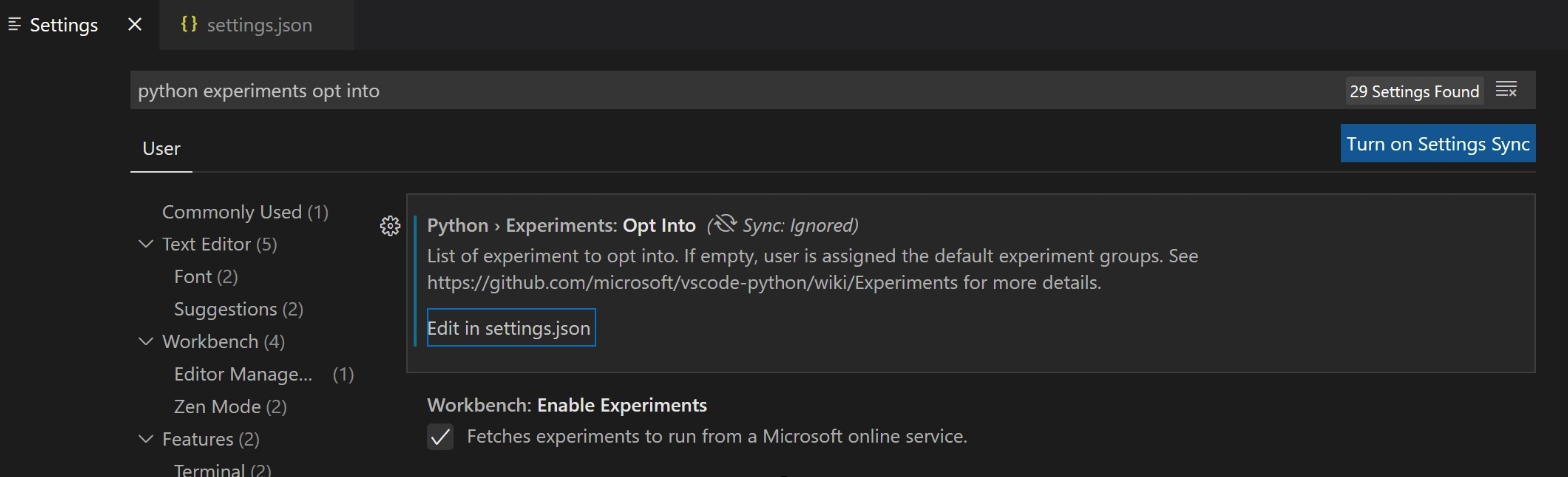
- Search for Python > Experiments: Opt Into option and click Edit in settings.json:
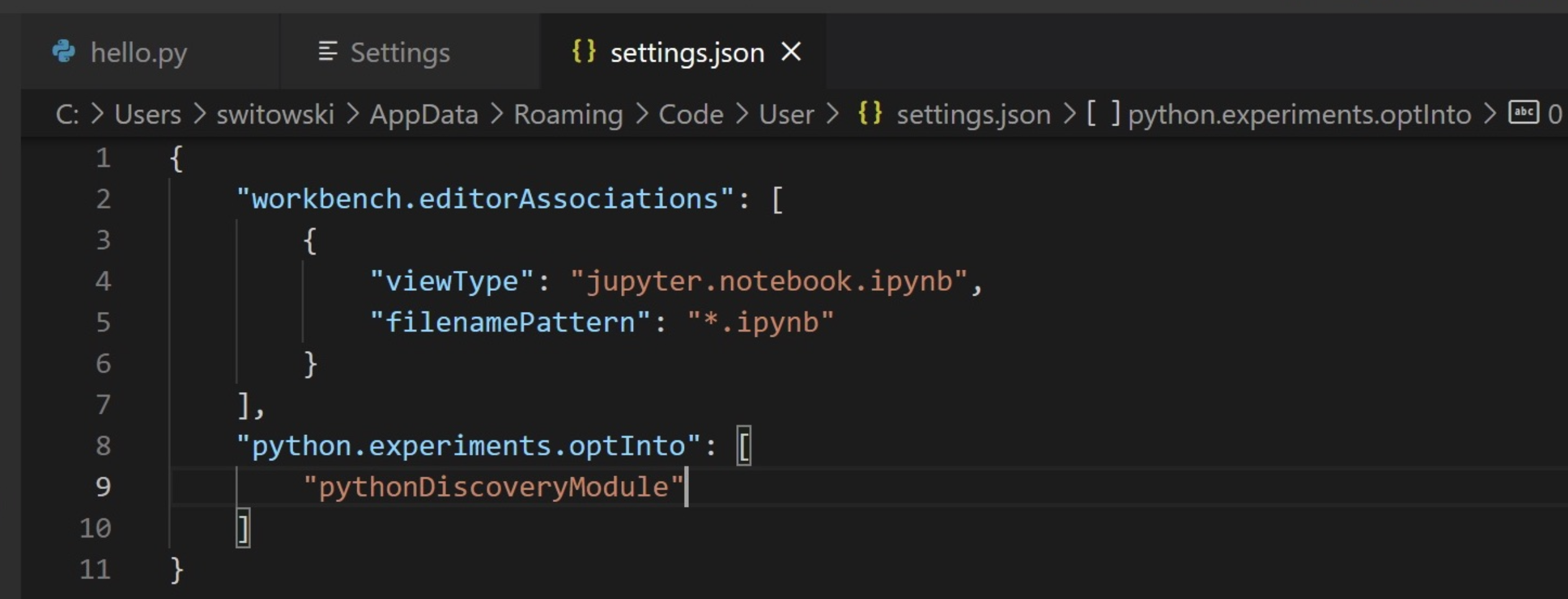
- This will open your settings file. Inside the "python.experiments.optInto" add "pythonDiscoveryModule", so it looks like this:
- Reload VS Code
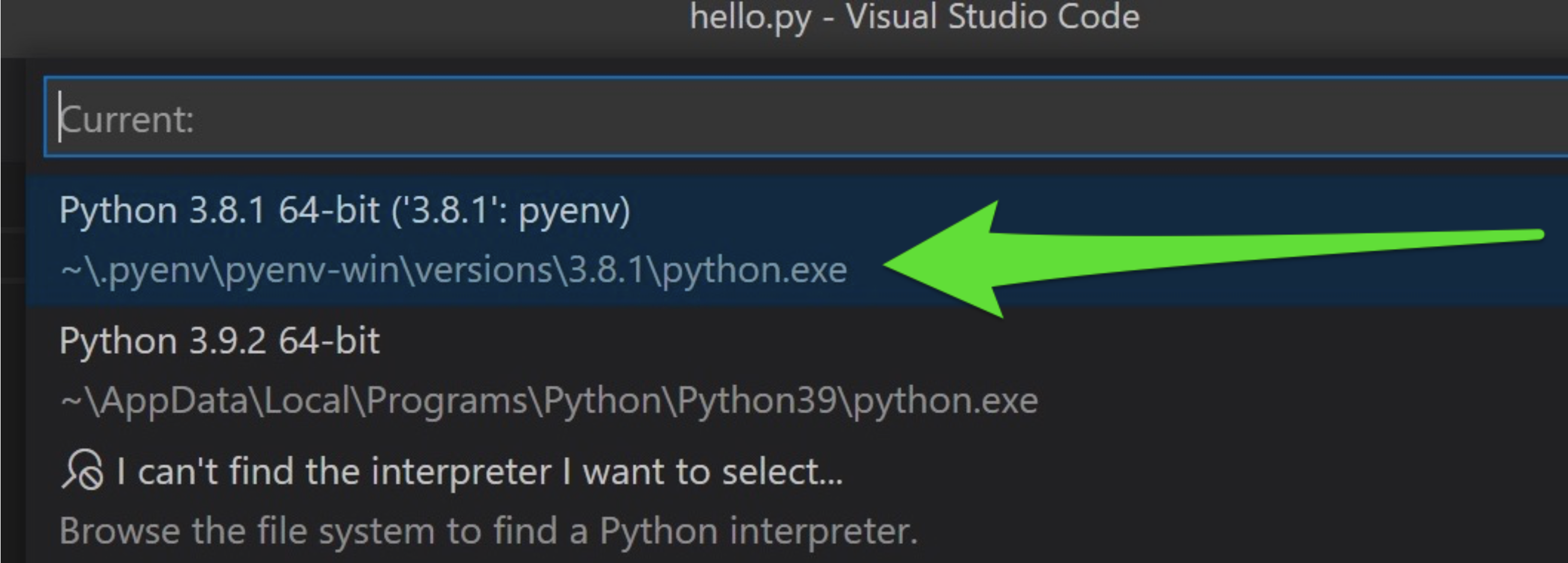
- Now, when you run "Python: Select Interpreter", you should see Python versions installed with
pyenv-win:
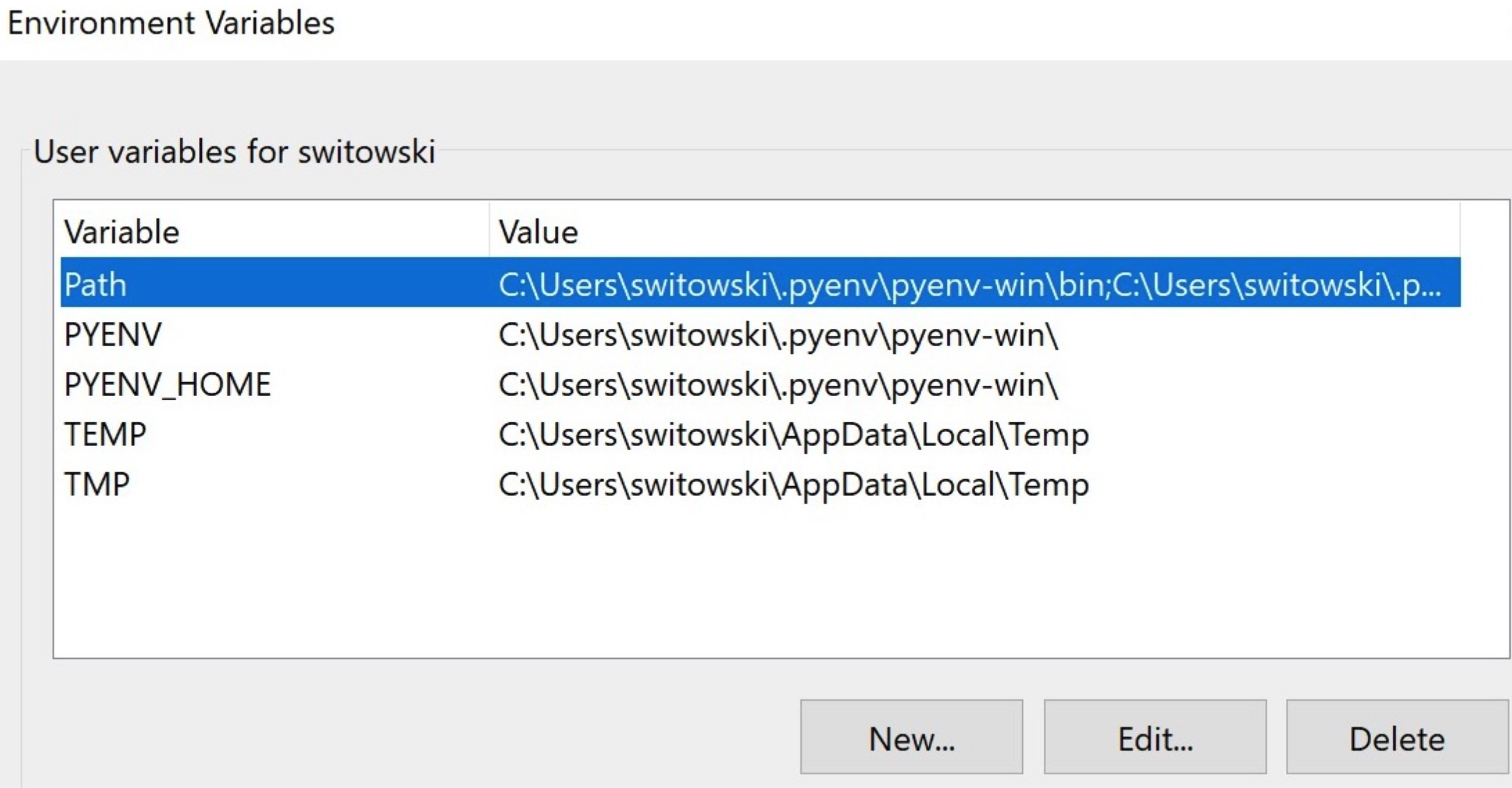
Important: If you don't see the "Python > Experiments: Opt Into" option, make sure you use the latest version of VS Code and that you set up pyenv-win correctly, including setting up the PYENV environment variables as explained in the installation instructions: https://github.com/pyenv-win/pyenv-win#finish-the-installation
If that still doesn't work, there is the hard way of pointing VS Code to a specific Python version:
- Run the "Python: Select Interpreter" command
- Select "I can't find the interpreter I want to select ..."
- Manually browse to the python.exe file installed with
pyenv-win. By default it should be inside.pyenv\pyenv-win\versions\<version-number>\python.exe(for me it wasc:\Users\switowski\.pyenv\pyenv-win\versions\3.8.1\python.exe):
